Installing Home Assistant
After doing the initial setup of the Raspberry Pi, the next step is to install Home Assistant on the Pi. Home Assistant is an open source home automation interface designed to work with lots of existing IoT devices and is very customizable for any application. It’s also commonly run on a Raspberry Pi with lots of community support online — that’s why I chose it for this project.
Container vs. full OS
Section titled “Container vs. full OS”The two recommended installation methods are the full Home Assistant OS or the Home Assistant container. While the full OS has more features, it limits the Pi to only running Home Assistant. Since I want to run other scripts and applications on the Pi and have better control of its interfaces, I went with the container installation.
Step 1 — Install Docker
Section titled “Step 1 — Install Docker”Install Docker by downloading and running the install script:
curl -fsSL https://get.docker.com -o get-docker.shsudo sh get-docker.shStep 2 — Install Home Assistant
Section titled “Step 2 — Install Home Assistant”The Home Assistant website has good instructions, but we need one small modification: add the --privileged flag so Home Assistant has access to GPIO and USB devices. Run the following command (replacing PATH_TO_YOUR_CONFIG with the actual path you want to use):
sudo docker run --init -d \ --name homeassistant \ --restart=unless-stopped \ -v /etc/localtime:/etc/localtime:ro \ -v /PATH_TO_YOUR_CONFIG:/config \ --network=host \ --privileged \ homeassistant/raspberrypi4-homeassistant:stableStep 3 — Access the web interface
Section titled “Step 3 — Access the web interface”Once Home Assistant finishes installing it will start automatically. Open a browser and navigate to:
http://<YOUR_PI_IP>:8123You should see the Home Assistant setup page:
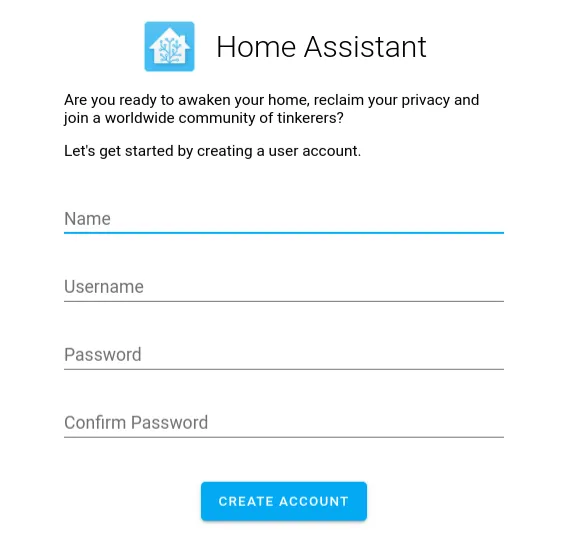
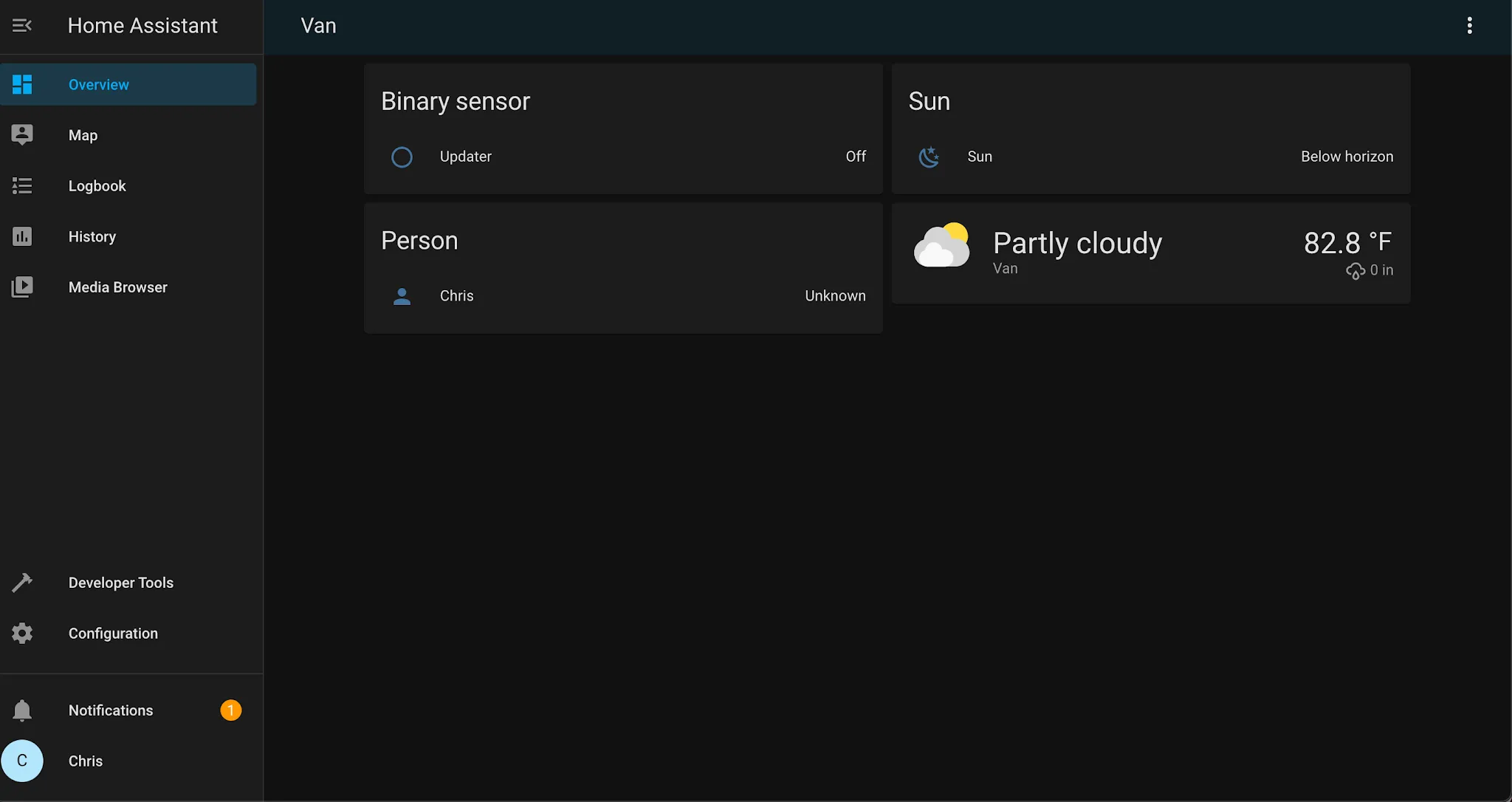
Follow the prompts to finish configuring it. Once done, you’ll see the default dashboard:
Accessing from your phone
Section titled “Accessing from your phone”You can reach Home Assistant from any phone or computer on your network using the same address above, or via the official Home Assistant app.
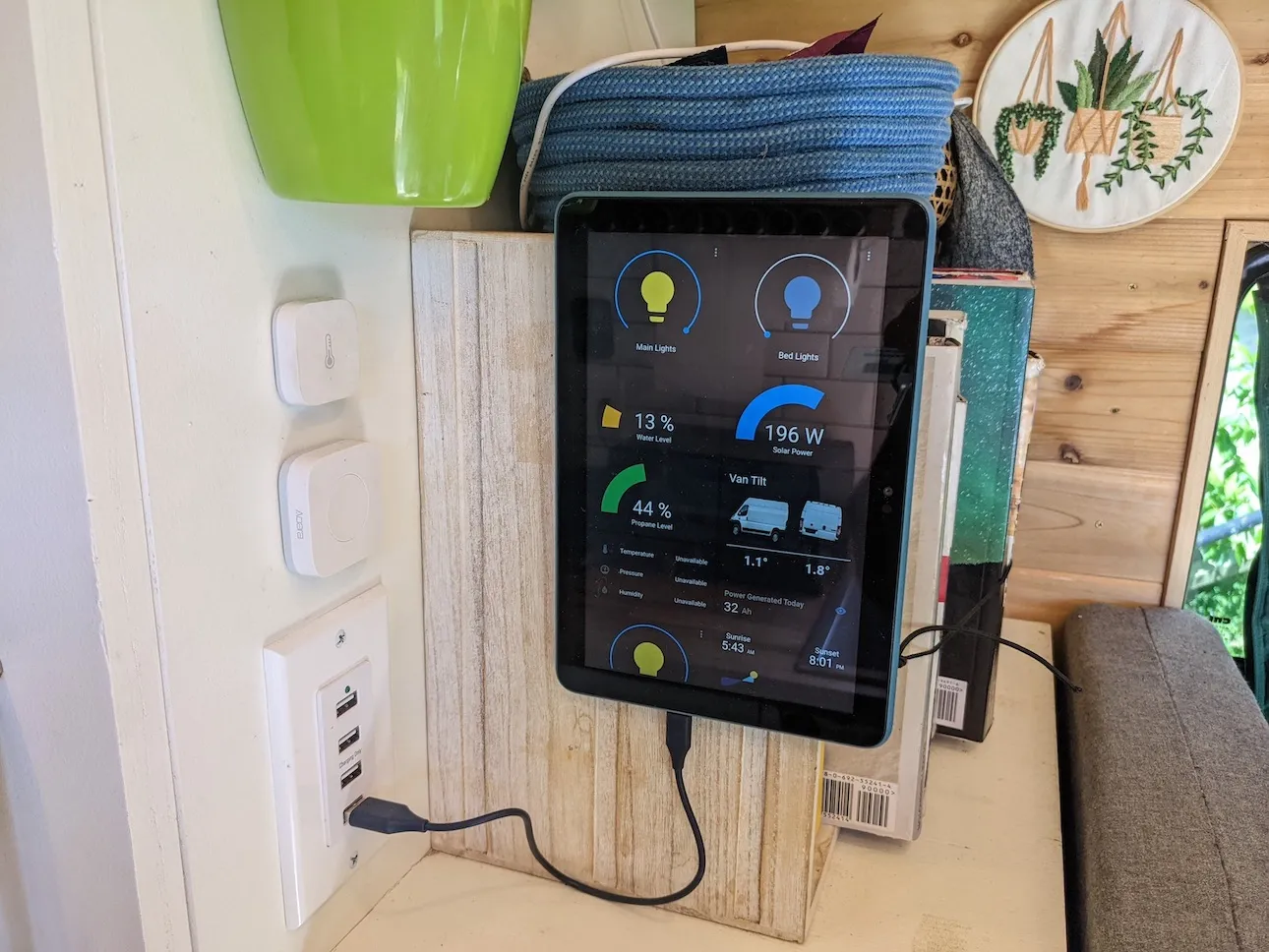
I originally mounted an old smartphone in the van and ran the Home Assistant app on it, but the screen was a bit small. I recently found a good deal on a Kindle Fire tablet and switched to that. I use the Fully Kiosk app to display the Home Assistant webpage as the main screen on the tablet — now I have a dedicated panel to control everything.
Home Assistant isn’t very useful without integrating it with the van’s systems, so next we’ll use it to control the lights!