Adding Wireless Switches
With the lights set up through Home Assistant I could control them from my phone or computer, but it would be nice to have some physical switches around the van as well. Wiring up light switches can be a pain and a lot of work, so I decided to use Zigbee wireless buttons instead.
What you’ll need
Section titled “What you’ll need”- Aqara Wireless Mini Switch — Wireless and battery powered, easy to install anywhere.
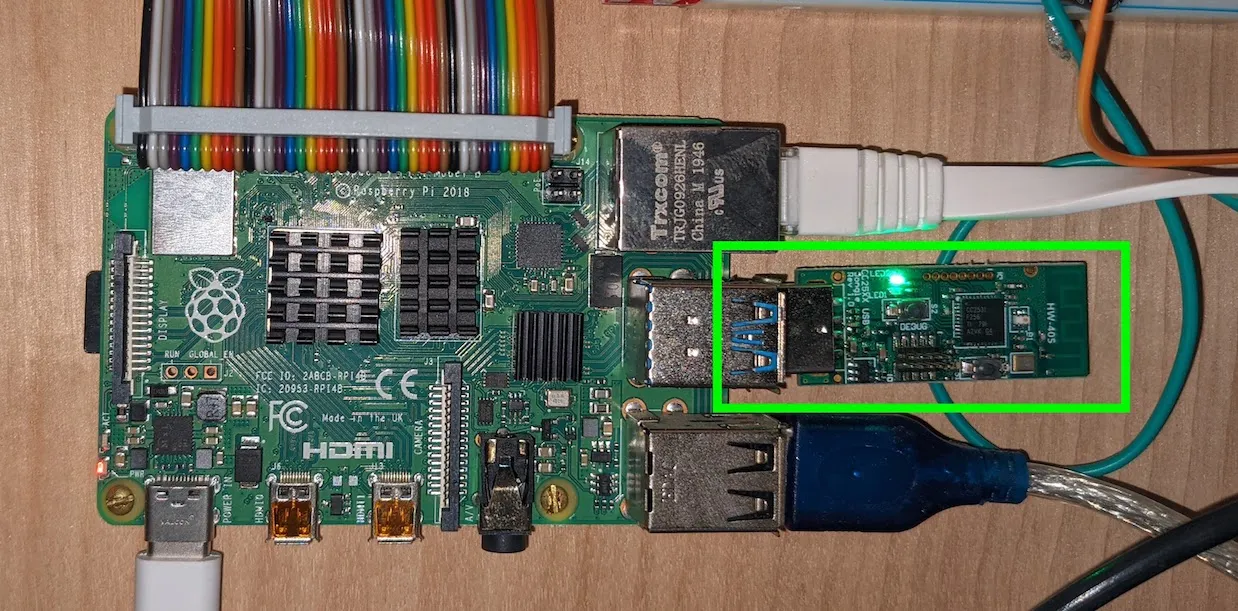
- Zigbee USB Dongle — The Raspberry Pi doesn’t have Zigbee built in. This is a cheap option that works well for my use case. It comes with the programming adapter which is needed.
- CC Debugger — Used to program the Zigbee dongle with the correct firmware.
Step 1 — Flash the Zigbee dongle
Section titled “Step 1 — Flash the Zigbee dongle”The first step is to program the Zigbee dongle with the correct firmware. The process is well-documented here:
Step 2 — Add the Zigbee integration
Section titled “Step 2 — Add the Zigbee integration”Insert the programmed dongle into the Raspberry Pi. In Home Assistant, go to Configuration → Integrations → Add Integration, search for Zigbee Home Automation, and add it. It should automatically detect the dongle and set itself up.
Step 3 — Pair the Aqara switch
Section titled “Step 3 — Pair the Aqara switch”From the Integrations page, click Configure on your Zigbee integration, then Add Device. Take out your Aqara switch and remove the battery tab. Press and hold the small button on top of the device — Home Assistant should discover it:
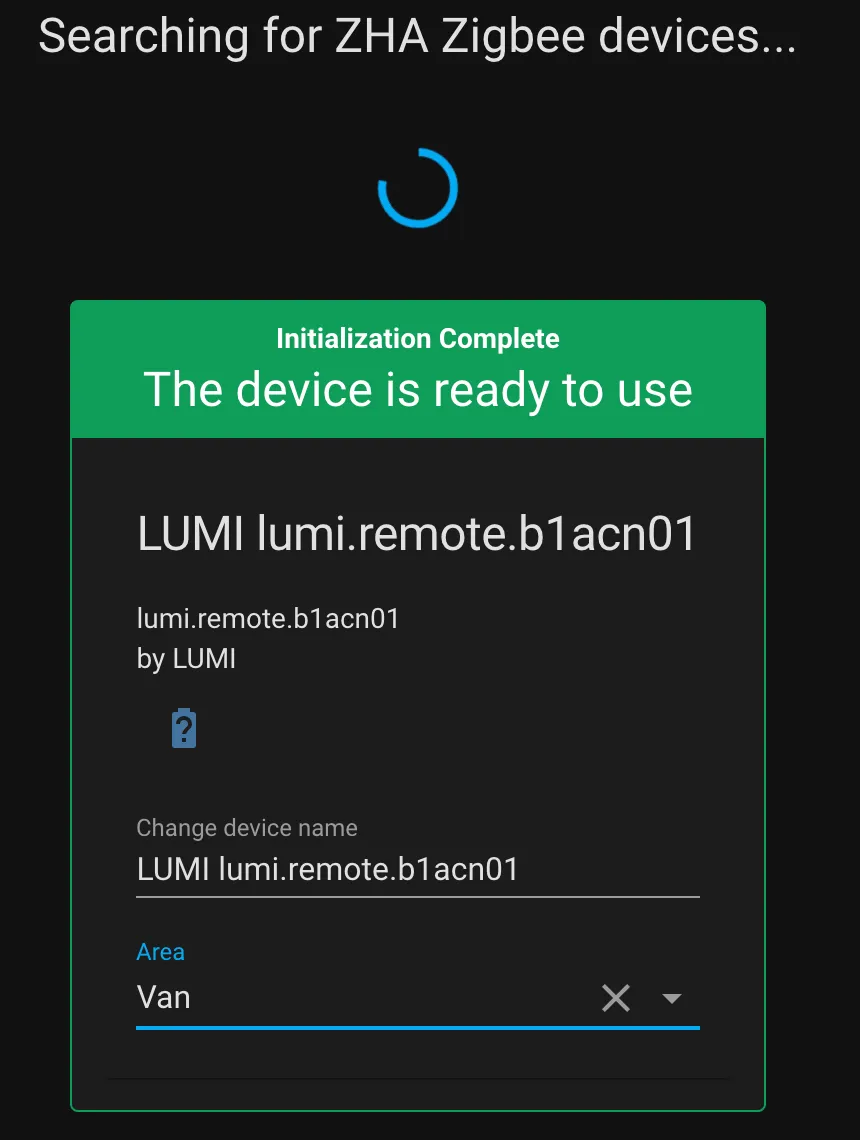
Sometimes this takes a few tries. It helps to hold the button closer to the Raspberry Pi during pairing. After discovery, rename the device to something descriptive.
Step 4 — Create an automation
Section titled “Step 4 — Create an automation”With the button configured, link it to the lights with an automation. Go to Configuration → Automations → Add Automation.
Add a trigger for when the button is pressed:
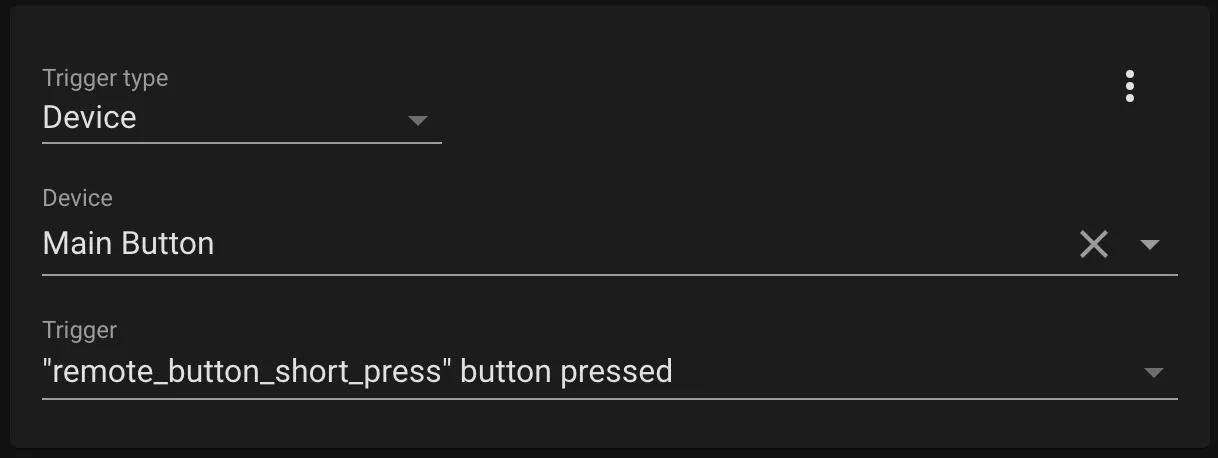
Then add an action to toggle the light:
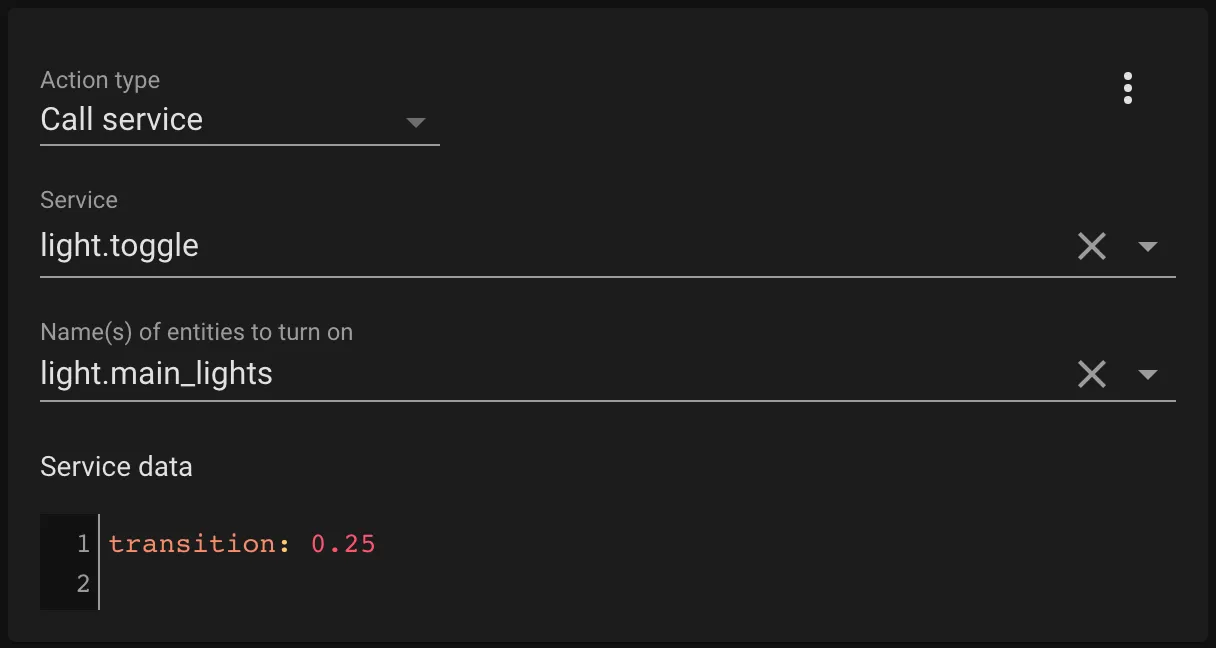
The transition property adds a nice effect of gradually increasing or decreasing brightness. I also created a second automation for controlling the bed lights from a double press.
Result
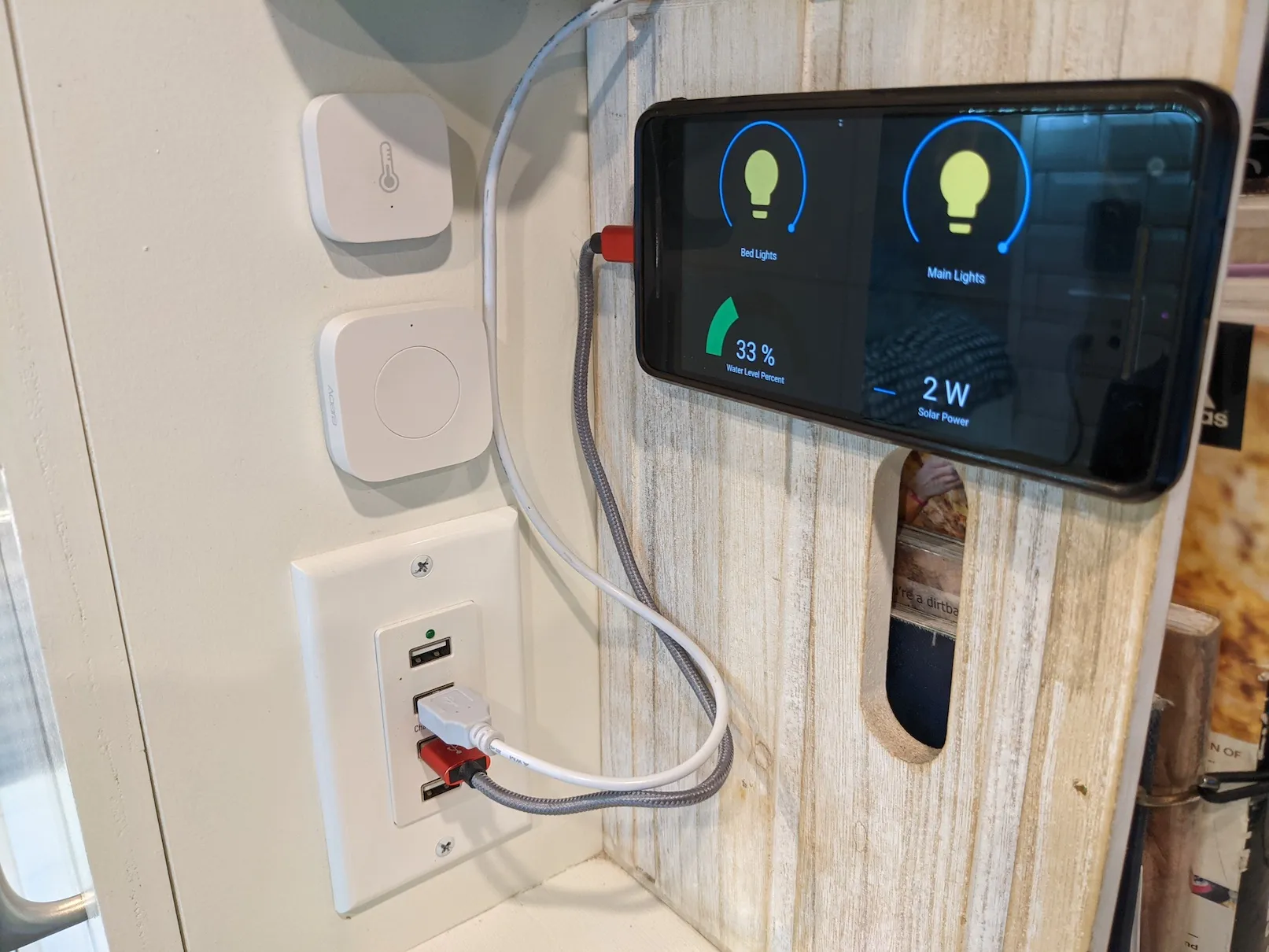
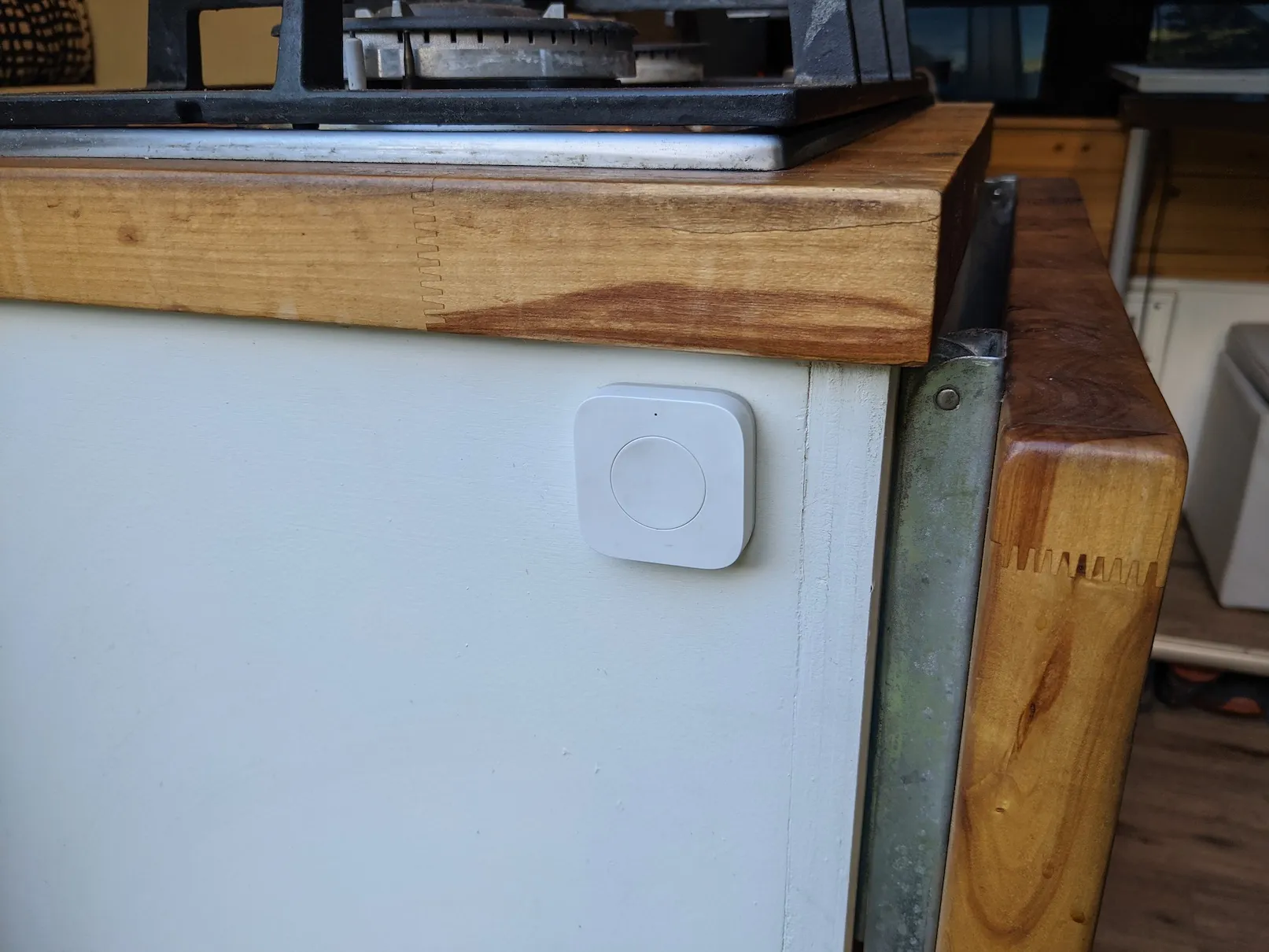
Section titled “Result”The button now controls the lights! I have one by the steering wheel, one by the sliding door, one by the bed, and one centered on a cabinet:
Bonus: Temperature and humidity sensor
Section titled “Bonus: Temperature and humidity sensor”You can follow the same steps above to add other Zigbee devices. I added this temperature and humidity sensor:
Aqara Temperature and Humidity Sensor